
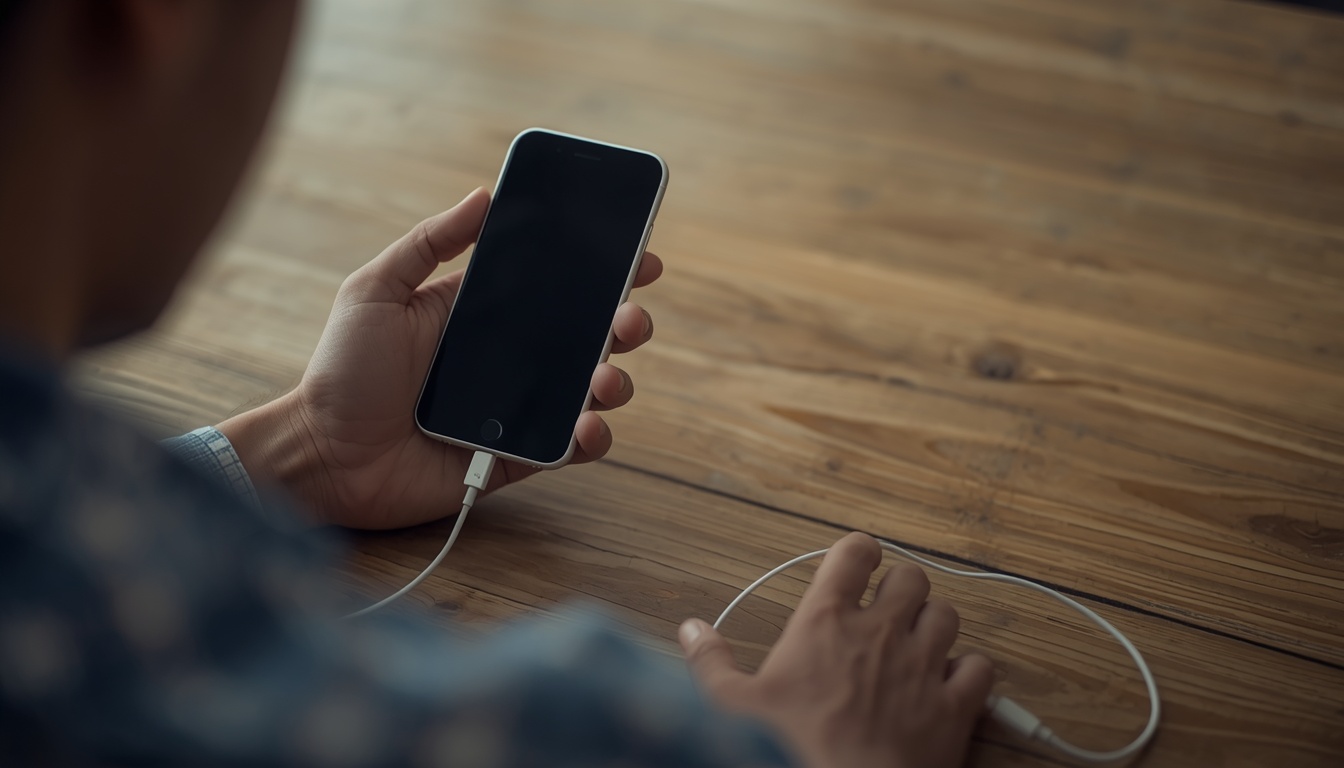
We’ve all been there. You grab your iPhone after a long day, plug it in, and… nothing. No reassuring buzz, no charging icon, just a blank screen staring back at you. That sinking feeling in your stomach is a universal experience for any modern smartphone user. Your iPhone is your connection to the world, and when it can’t charge, it feels like you’re on a countdown to being disconnected.
But before you start panicking or pricing a brand-new phone, let’s take a deep breath. In many cases, the reason your iPhone isn’t charging is something you can fix yourself in just a few minutes. Other times, it might be a sign you need a little professional help.
This guide will walk you through the 7 most common reasons an iPhone stops charging. We’ll start with the simple, at-home solutions and then move into the more complex issues that might require an expert. For our neighbors in Houston, know that when DIY doesn’t cut it, the team at Repair My Devices is always here to get you powered up again.
Part 1: Simple Fixes You Can Try at Home
Let’s start with the basics. Often, the problem isn’t with your iPhone’s internal hardware but with something much simpler. Work through these steps first before assuming the worst.
1. The Software Glitch: Force a Restart
Sometimes, the problem isn’t hardware at all. The software that manages charging on your iPhone can occasionally crash or freeze. A force restart acts like a hard reboot for your phone, clearing out temporary glitches without erasing any of your data. It’s the oldest trick in the IT book because it works so often.
How to Force Restart Your iPhone:
- For iPhone 8, X, 11, 12, 13, 14, and newer: Press and quickly release the Volume Up button. Press and quickly release the Volume Down button. Then, press and hold the Side (power) button until you see the Apple logo.
- For iPhone 7 and 7 Plus: Press and hold both the Volume Down button and the Sleep/Wake button at the same time. Keep holding them until the Apple logo appears.
- For iPhone 6s and older: Press and hold both the Sleep/Wake button and the Home button simultaneously until you see the Apple logo.
Once your phone restarts, try plugging it in again. If it starts charging, you’ve just saved yourself a lot of stress!
2. Check Your Charging Accessories
Your iPhone is only one part of the charging equation. The cable, the power adapter, and even the wall outlet are all potential points of failure.
- The Lightning Cable: Let’s be honest, Apple’s Lightning cables aren’t known for their durability. Check your cable for any signs of fraying, kinks, or bent pins. The best way to test it is to try a different, known-to-be-working cable. If your phone charges with the new cable, you’ve found your culprit.
- Pro-Tip: Always use MFi-Certified (Made for iPhone) cables. Cheap, uncertified cables from the gas station can not only fail quickly but also damage your iPhone’s charging port or logic board over time, leading to more expensive repairs.
- The Power Adapter: The little white block that plugs into the wall can also fail. Try plugging your USB cable into a different power adapter, a USB port on a computer, or a different charging station.
- The Wall Outlet: It sounds obvious, but make sure the outlet you’re using is working. Plug a lamp or another device into it to confirm it has power.
3. The Biggest Culprit: A Dirty Charging Port
This is, by far, one of the most common reasons an iPhone stops charging. Your iPhone’s charging port spends its life in your pocket or bag, where it becomes a perfect trap for lint, dust, and other debris. Over time, this gunk gets compacted at the bottom of the port, physically preventing the Lightning cable from making a solid connection.
You might notice the cable feels “mushy” or doesn’t click in all the way.
How to Safely Clean Your iPhone’s Charging Port:
- Inspect It: First, get a flashlight and look inside the port. You’ll likely be surprised by what you see crammed in there.
- Use Compressed Air: A can of compressed air is the safest first step. Hold the can upright and use short, gentle bursts to try and dislodge any loose debris.
- Gently Scrape (With Caution!): If air doesn’t work, you’ll need to use a tool. DO NOT USE ANYTHING METAL. A metal paperclip or pin can short-circuit the charging pins and cause permanent damage. Instead, use a non-conductive tool like a plastic or wooden toothpick.
- Turn off your iPhone.
- Gently insert the toothpick and scrape along the inside walls of the port. Be very careful not to poke at the gold charging pins.
- You’re aiming to hook the compacted lint and pull it out.
Important Warning: The charging pins are delicate. If you are not 100% comfortable cleaning the port yourself, it’s best to stop here. A forceful hand can turn a simple cleaning job into a major repair. If you need assistance, our team offers professional port cleaning as part of our iPhone repair services in Houston.
Part 2: When DIY Isn’t Enough: Common Hardware Failures
If you’ve tried all the steps above and your screen is still dark, it’s likely you’re dealing with a hardware issue. These problems require a technician’s expertise to diagnose and fix correctly.
4. Damaged or Worn-Out Charging Port
If you’ve cleaned the port and it still isn’t working, the port itself might be the problem. This is a common wear-and-tear issue, but it can also be caused by drops, liquid exposure, or using low-quality charging cables.
Signs of a Damaged Port:
- The charging cable feels very loose or wobbly when plugged in.
- You have to wiggle the cable or hold it at a specific angle to get it to charge.
- You can see visible damage, corrosion (green or black gunk), or bent pins inside the port.
These symptoms are a clear signal that you need a professional iPhone charging port repair in Houston. This is not a DIY job for the average person, as it involves carefully disassembling the device, replacing the delicate port assembly, and putting it all back together without damaging the screen or other internal components.
5. Battery Failure
Your iPhone’s battery isn’t meant to last forever. Like all rechargeable batteries, it degrades over time with each charge cycle. An old, worn-out battery can lose its ability to hold a charge or even accept one in the first place.
How to Check Your Battery Health:
- Go to Settings > Battery > Battery Health & Charging.
- Look at the Maximum Capacity. A brand-new iPhone is at 100%. If your capacity is below 80%, your battery is considered significantly degraded and may cause performance issues and charging problems.
- If you see a “Service” message, it’s a clear sign from Apple that the battery needs to be replaced.
A failing battery can also swell, which is a serious safety hazard that can damage your screen and other parts. If you suspect a battery issue, it’s crucial to have it professionally replaced. Our technicians can handle battery replacements for all models, like the iPhone 13 repair service in Houston.
6. Liquid Damage
Even though modern iPhones are “water-resistant,” they are not waterproof. The seals can degrade over time, and a quick splash in the pool or a spilled drink can still let moisture inside. Liquid is the enemy of electronics, causing short circuits and corrosion on the charging port and, worse, the logic board. The damage may not even be immediate; corrosion can grow over days or weeks before causing your phone to fail.
7. Logic Board Issue (Tristar/U2 IC Chip Failure)
This is the most complex charging issue. The logic board is your iPhone’s brain, and on it sits a tiny component called the Tristar (or U2) IC chip. This chip’s job is to manage the flow of power from the charging cable to the battery.
This chip can be damaged by power surges, often from using cheap, non-certified chargers, or from physical shock after a hard drop.
Symptoms of a Tristar Chip Failure:
- The phone refuses to charge at all, no matter what cable or adapter you use.
- The phone shows a charging icon but the battery percentage never increases (“fake charging”).
- The battery drains extremely quickly.
- The phone is completely dead and won’t respond to anything.
Fixing this requires micro-soldering, a highly specialized skill that only true professional repair shops can offer. It’s the ultimate test of a technician’s ability.
Your Trusted Solution: iPhone Charging Port Repair in Houston
If you’ve worked through this list and your iPhone is still giving you trouble, don’t give up hope. For residents in the Houston area, the expert technicians at Repair My Devices are ready to help.
We understand how vital your phone is. That’s why we offer a fast, free, and accurate diagnosis to pinpoint the exact cause of your charging woes.
- Expert Diagnosis: We’ll determine if it’s a simple port cleaning, a dead battery, or a more complex hardware issue.
- Professional Technicians: Our experienced team is equipped to handle everything, from basic fixes to complex iPhone charging port repair in Houston. We even have the micro-soldering expertise to tackle logic board issues.
- Quality and Trust: We use only high-quality replacement parts and stand by our work with a solid warranty. You can learn more about our commitment to quality.
Stop struggling with a wobbly cable or a phone that won’t turn on. Let us get you connected again.
Conclusion
An iPhone that refuses to charge can be incredibly disruptive, but the solution is often within reach. By starting with simple troubleshooting steps like restarting your phone, checking your accessories, and carefully cleaning the charging port, you can solve many common problems yourself.
However, when the issue points to hardware failure like a physically broken port, a depleted battery, or internal damage the safest and most effective solution is to seek professional service. For a fast, reliable, and affordable iPhone charging port repair in Houston, look no further than Repair My Devices. We’ll get your iPhone powered up and back in your hands in no time.
Leave a Comment
Your email address will not be published. Required fields are marked *