Every summer, repair technicians across the United States witness a surge in one particular issue: iPhone swollen batteries. Affectionately nicknamed “spicy pillows” in tech communities, these bloated power cells represent more than an inconvenience; they constitute a genuine fire and explosion hazard.
If you’ve noticed your iPhone screen lifting, the device feeling thicker, or your phone rocking on flat surfaces, you may be dealing with a swollen battery. This comprehensive guide explains why summer heat accelerates battery degradation, how to identify warning signs, and what steps to take when your iPhone battery begins to fail.
How 95°F+ Weather Degrades Lithium-Ion Capacity
Lithium-ion batteries operate through chemical reactions that are highly temperature-sensitive. Apple designs iPhones to function optimally between 32°F and 95°F (0°C to 35°C). When ambient temperatures exceed this threshold, the battery’s internal chemistry becomes unstable.
At temperatures above 95°F, several destructive processes occur simultaneously:
Accelerated Electrolyte Decomposition: The liquid electrolyte that enables ion movement between the anode and cathode begins breaking down faster. This decomposition produces gases that accumulate inside the sealed battery pouch.
SEI Layer Degradation: The Solid Electrolyte Interphase, a protective film on the battery’s anode, deteriorates in heat. Each degradation cycle consumes lithium ions permanently, reducing overall capacity.
Thermal Runaway Risk: In extreme cases, sustained heat exposure can trigger thermal runaway, where the battery generates more heat than it can dissipate, potentially resulting in fire or explosion.
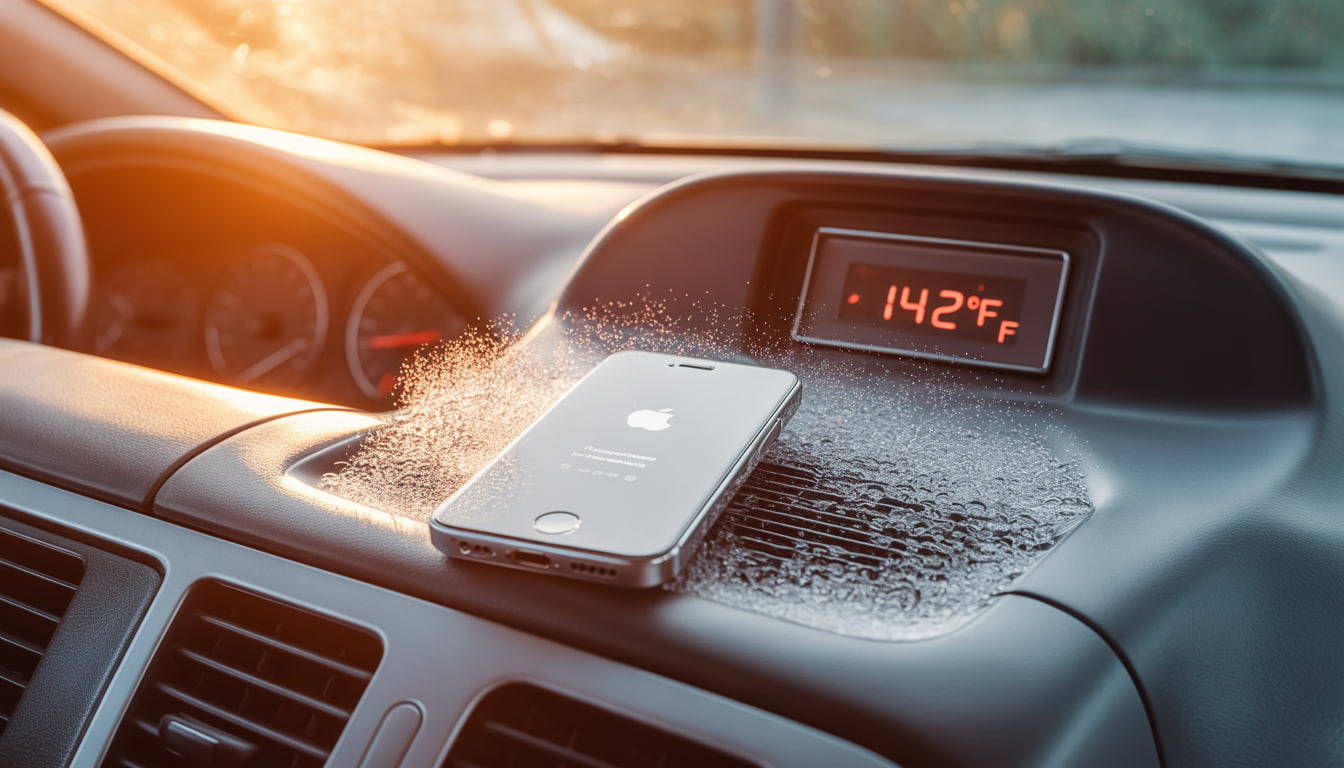
Research indicates that storing lithium-ion batteries at 104°F (40°C) for extended periods can reduce capacity by 15-35% within a single year. For iPhone users in states like Arizona, Texas, Florida, and Nevada, leaving devices in parked cars during summer months where interior temperatures can exceed 140°F dramatically shortens battery lifespan.
The formation of internal gases is what transforms a flat battery cell into the characteristic pillow shape. This swelling places pressure on internal iPhone components, eventually pushing the display away from the frame.
How to Read Your iPhone Battery Settings Like a Pro
Apple provides diagnostic tools that help users monitor battery health before problems become visible. Navigate to Settings > Battery > Battery Health & Charging to access critical information.
Maximum Capacity: This percentage indicates your battery’s current capacity relative to when it was new. A reading of 85% means your battery holds 85% of its original charge. Apple considers batteries with 80% or higher capacity to be operating normally.
Peak Performance Capability: This section reveals whether iOS has implemented performance throttling. Messages indicating “normal” peak performance mean no throttling is active. Any variation from this message warrants attention.
Cycle Count (accessible via Settings > General > About on iOS 17.4+): Each full discharge and recharge constitutes one cycle. Apple rates iPhone batteries for approximately 500 complete cycles before reaching 80% capacity, though newer models with improved chemistry may exceed this.
Charging Optimization Status: Verify that “Optimized Battery Charging” is enabled. This feature learns your charging habits and delays charging past 80% until you need your phone, reducing stress on the battery.
Monitor these metrics monthly during summer months. Rapid capacity drops particularly losses exceeding 5% within a single month may indicate heat damage or imminent swelling.
Why Apple Intentionally Slows Down Phones with Old Batteries
In 2017, Apple confirmed what many users suspected: iOS throttles processor speeds on iPhones with degraded batteries. This practice, initially implemented without user notification, sparked significant controversy and resulted in a $113 million settlement across multiple states.
The technical justification is legitimate. As batteries age, their internal resistance increases.
When high-performance tasks demand significant current draw, degraded batteries may struggle to maintain adequate voltage. This voltage sag can cause unexpected shutdowns a problem that affected many iPhone 6 and 6s users.
Apple’s solution was to dynamically limit peak CPU and GPU performance when the battery cannot reliably supply demanded power. While this prevents shutdowns, it manifests as:
- Slower application launch times
- Reduced frame rates during graphics-intensive tasks
- Longer processing times for photos and videos
- Dimmed display brightness in some scenarios
Following user backlash, Apple now provides transparency through the Battery Health menu. If you see the message “Performance management has been applied,” your device is being throttled due to battery degradation. iOS allows users to disable this feature, though doing so risks unexpected shutdowns.
For iPhones with swollen batteries, throttling often precedes visible swelling. If performance degradation coincides with summer months and your phone is two or more years old, battery inspection is advisable.
iPhone Swollen Batteries: Recognizing Screen Lifting as a Fire Hazard
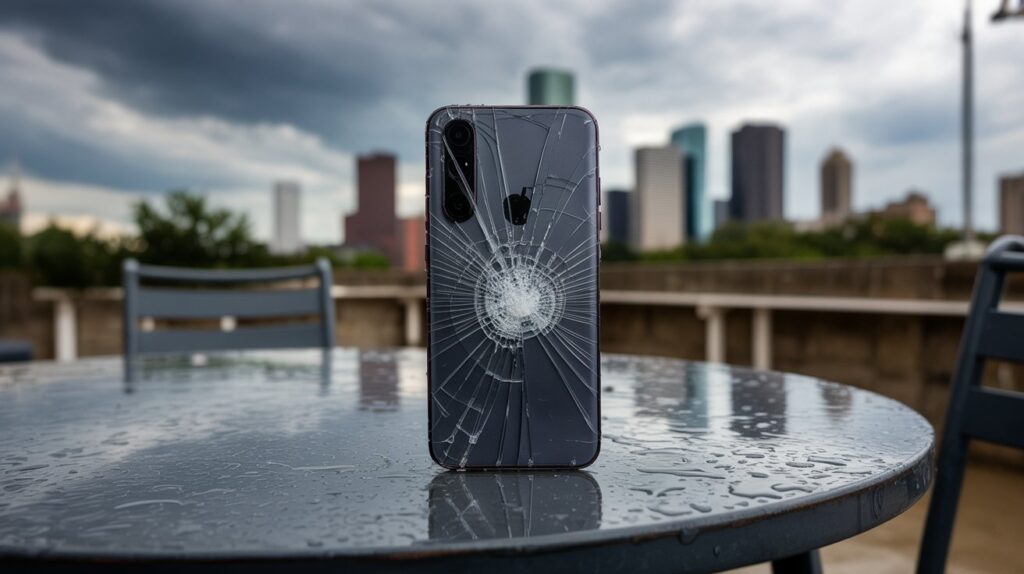
The most visible indicator of iPhone swollen batteries is display separation. As gases accumulate within the battery pouch, internal pressure increases until the weakest structural point yields typically the adhesive bonding the screen to the frame.
Perform these physical inspections regularly:
The Flat Surface Test: Place your iPhone on a hard, flat surface. Press each corner gently. If the phone rocks or feels unstable, the frame may be warping due to battery expansion.
Visual Inspection: Examine the seam between the display and aluminum frame from multiple angles under good lighting. Any visible gap, particularly near the bottom of the device (where iPhone batteries are located), indicates potential swelling.
Tactile Check: Run your fingernail along the display edge. Separation should be imperceptible on a healthy device.
Caution: If you confirm swelling, do not attempt to puncture, compress, or heat the device. Punctured lithium-ion batteries can release toxic fumes and ignite. Place the device in a fireproof container or on a non-flammable surface away from combustibles and contact a qualified repair technician immediately.
The Consumer Product Safety Commission recommends treating swollen batteries as hazardous materials. Do not place swollen devices in regular trash. Most Apple Stores and authorized service providers accept damaged batteries for proper recycling.
Aftermarket vs. OEM Quality: Understanding the Difference in Replacement Parts
When replacing iPhone swollen batteries, consumers face a choice between Apple’s official service and third-party repair providers using aftermarket components. Understanding the differences helps inform this decision.
OEM (Original Equipment Manufacturer) Batteries:
- Manufactured to Apple’s specifications
- Include proper battery management system integration
- Maintain accurate Battery Health readings in iOS
- Carry Apple’s warranty coverage
- Cost more ($89-$119 through Apple for most models)
Aftermarket Batteries:
- Quality varies dramatically by supplier
- May use recycled or inferior cells
- Often trigger “Unable to verify” warnings in iOS
- May not communicate accurately with iOS battery management
- Typically cost $30-$60 through independent repair shops
Apple implemented software-based authentication starting with the iPhone XS and XR.
Non-authenticated batteries display a “Service” message in Battery Health regardless of actual condition, and accurate capacity reporting is disabled.
However, this doesn’t mean all aftermarket options are inferior. High-quality third-party batteries using genuine cells can perform comparably to OEM components. The challenge lies in identifying reputable suppliers. Request information about cell origin and capacity ratings before authorizing replacement.
For devices still under AppleCare+ coverage, Apple replacement represents the logical choice. For older devices outside warranty, aftermarket batteries from established repair shops with strong reviews offer reasonable value.
Calibration Tips: How to Treat Your New Battery for Maximum Lifespan
After battery replacement, proper calibration and usage habits significantly impact longevity.
Follow these evidence-based practices:
Initial Calibration Cycle: Allow the new battery to discharge to approximately 5-10%, then charge uninterrupted to 100%. Leave connected for an additional hour after reaching full charge. This process helps iOS accurately gauge the battery’s true capacity.
Ongoing Maintenance:
- Maintain charge levels between 20-80% during daily use when possible
- Avoid overnight charging on surfaces that trap heat (beds, couches)
- Remove cases during extended charging sessions to improve heat dissipation
- Enable “Optimized Battery Charging” to reduce time spent at 100%
- Avoid using the device while charging, particularly during resource-intensive tasks
Environmental Precautions:
- Never leave your iPhone in vehicles during summer months
- Avoid direct sunlight exposure during outdoor use
- If the device displays a temperature warning, power it off and allow cooling before resuming use
- Store devices in climate-controlled environments during extreme weather
Charging Equipment: Use Apple-certified cables and adapters. Non-certified chargers may deliver inconsistent voltage that stresses battery chemistry. MFi certification indicates compliance with Apple’s standards.
Following these practices can extend battery service life by 12-24 months compared to careless usage patterns.
Conclusion
iPhone swollen batteries represent a predictable failure mode that summer heat accelerates substantially. By monitoring battery health metrics, recognizing physical warning signs, and responding appropriately when swelling occurs, you can protect both your device and your safety.
If you discover a swollen battery in your iPhone, avoid delays. The same chemical instability causing the swelling creates fire risk that increases over time. Seek professional replacement promptly and follow calibration best practices to maximize the lifespan of your new battery.