
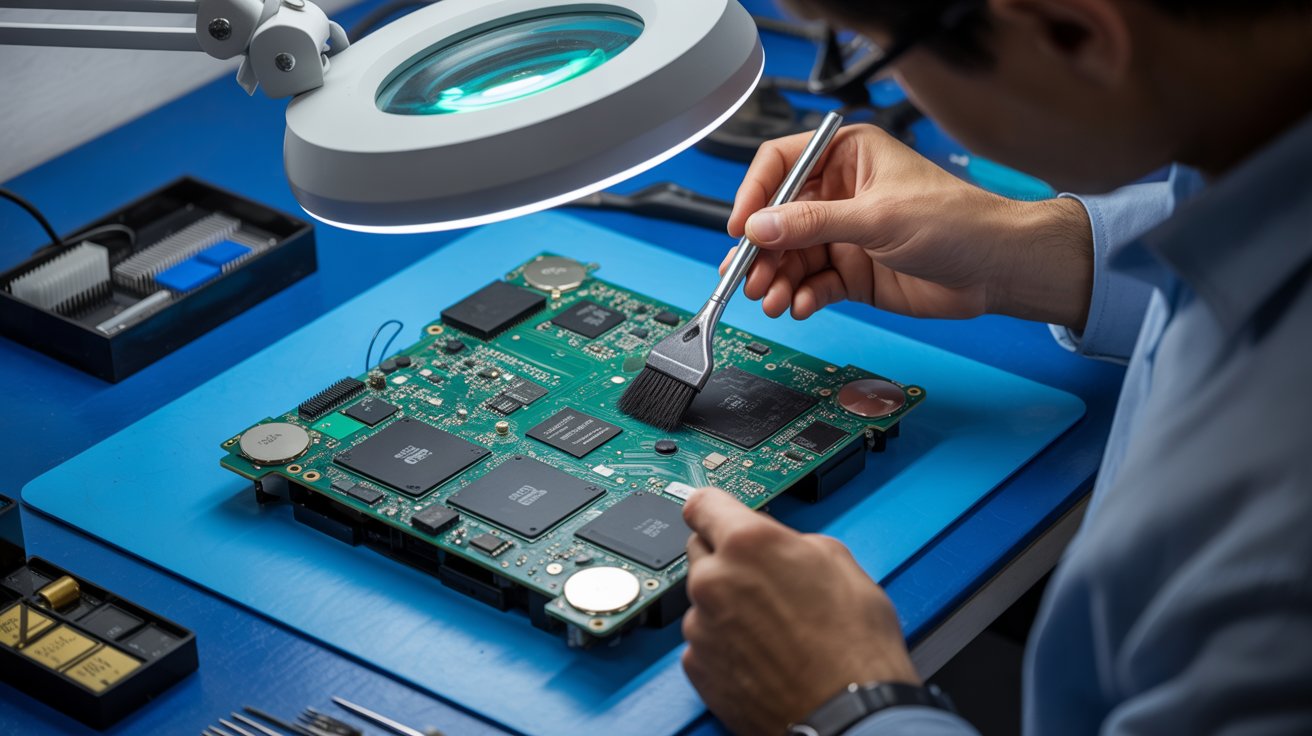
That unmistakable roar from your PS5 isn’t just annoying it’s your console crying for help. Thousands of PS5 owners report their consoles sounding like jet engines, often drowning out game audio entirely.
This noise signals potential thermal damage if ignored. Let’s explore what causes it and how to fix it properly.
The “Jet Engine” Warning: Identifying the Sound of a Struggling Cooling Fan
A healthy PS5 operates at 20-35 decibels barely audible. The jet engine sound hits 50-70 decibels, comparable to a vacuum cleaner.
What different patterns mean:
- Gradual escalation (quiet to loud over 20 minutes): Dust accumulation
- Immediate loud operation: Severe dust buildup or dried thermal paste
- Intermittent screaming: Coil whine combined with thermal throttling
- Grinding or rattling: Mechanical failure requiring immediate attention
Your PS5’s fan speed responds directly to internal temperatures. When the APU exceeds 85°C, the fan maxes out to prevent damage that’s your jet engine sound.
When problems typically start:
- Clean environments: 12-18 months
- Pet owners: 8-12 months
- Smokers: 4-8 months
The Lethal Combination Clogging Your Heatsink Right Now
It’s not just dust inside your PS5 it’s a toxic mixture creating an insulating blanket over your cooling system.
The deadly recipe:
- Household dust (40%): Skin cells, fabric fibers, soil particles
- Pet dander and hair (25% in pet homes): Embeds deep in heatsink fins
- Smoke/vapor residue: Creates sticky tar that binds everything together
- Humidity: Transforms loose dust into cement-like blockages
The damage progression:
| Blockage Level | Temperature Increase | Result |
| 20% | +5-10°C | Minor noise increase |
| 40% | +15-20°C | Noticeable jet engine |
| 60% | +25-30°C | Constant loud operation |
| 80%+ | +35°C | Thermal throttling/shutdown |
Warning about dust covers: Aftermarket dust covers often restrict airflow, trap heat, and accelerate problems rather than preventing them.

Understanding the PS5’s Unique Cooling System (And Why You Shouldn’t Open It Yourself)
Sony engineered the PS5 with revolutionary cooling technology that’s both impressive and dangerous to tamper with.
Key components:
- Dual-sided vapor chamber: Spreads heat across a massive surface area using evaporating water
- 120mm dual-intake fan: 23 blades with variable speed control
- Liquid metal thermal interface: 2-4x better conductivity than paste, but extremely dangerous if disturbed
Why DIY disassembly is risky:
- Liquid metal contamination: Spills cause immediate short circuits. 15% of DIY repair attempts result in liquid metal damage costing $350-450 to fix.
- Warranty voidance: Opening beyond user-accessible panels (faceplates/expansion bay) voids your warranty entirely.
- Static discharge: One static shock can destroy chips, with damage sometimes appearing weeks later.
- Reassembly errors: Over-tightened screws crack motherboards; improper cable seating causes boot failures.
What you CAN safely do:
- Remove faceplates and vacuum dust ports
- Clean exterior surfaces
- Ensure proper ventilation spacing
- Access expansion bay for SSD installation
The HDMI Port Weakness: Why Wiggling Your Cable Causes Permanent Damage
The PS5’s HDMI 2.1 port is surface-mounted with only solder pads for support no reinforcement bracket.
How normal use causes damage:
- Heavy/stiff cables exert constant leverage
- Moving the console for cleaning
- Cable swapping between devices
- The deadly “wiggle test” when connections seem unstable
Each wiggle breaks microscopic amounts of solder. Damage accumulates invisibly until total failure.
The thermal connection: Marginal HDMI damage forces harder video processing, generating more heat and louder fans. Users then chase thermal solutions for what’s actually a connector problem.
Prevention strategies:
- Use thin, flexible HDMI 2.1 cables
- Create slack loops to reduce port stress
- Never wiggle cables to “fix” connections
- Treat insertions as permanent installations
Repair costs: HDMI port replacement runs $100-150 professionally. Prevention costs under $30 in quality cables.
DIY Canned Air vs. Professional Deep Clean: Why Blowing Air In Can Make It Worse
Canned air seems like the obvious solution. For your PS5, it’s potentially disastrous.
Why canned air fails:
- Redistribution, not removal: High-pressure air pushes dust deeper into heatsink fins rather than extracting it
- Moisture introduction: Tilted cans spray liquid propellant causing condensation and corrosion
- Fan spin damage: Forced spinning exceeds design limits, stressing bearings and potentially generating damaging electrical feedback
- Static generation: Rapidly flowing air creates electrostatic discharge risk
What professional cleaning includes:
- Complete disassembly (fan, heatsink, power supply)
- Component-specific cleaning with proper tools
- Thermal interface replacement
- Reassembly with proper torque and testing
- Temperature verification under load
Cost comparison:
| Approach | Cost | Effectiveness | Long-term |
| DIY canned air | $10 | 10-20% | Returns in weeks |
| Professional clean | $100-150 | 95%+ | Lasts 12-18 months |
Finding reputable service: Look for specific PS5 experience, micro-soldering capability, work warranties, and before/after documentation. Avoid shops with no reviews or suspiciously low prices.
How Heat Kills Your Frame Rates (FPS) in Competitive Gaming
That loud fan isn’t just annoying, it’s warning you about performance loss happening right now.
Thermal throttling explained:
When your APU approaches dangerous temperatures, the system automatically:
- Reduces clock speeds
- Limits power draw
- Scales down resolution/effects
- Caps frame rates
This happens invisibly no warning, just degraded performance.
Real performance impact:
| Game | Clean Console | Dusty Console |
| Fortnite (120Hz mode) | Stable 120 FPS | 90-110 FPS with dips |
| Warzone 2.0 | 100-120 FPS | 70-95 FPS with stuttering |
| Demanding AAA titles | Stable 60 FPS | 45-55 FPS with drops |
For competitive gamers, this means:
- Delayed input response
- Inconsistent frame pacing
- Visual stuttering during crucial moments
Environmental optimization:
- Maintain room temperature at 68-72°F
- Ensure 4″+ clearance on all ventilated sides
- Never place on carpet or soft surfaces
- Consider vertical positioning (often runs cooler)
Conclusion: Your Action Plan
Today:
- Rate your fan noise severity
- Check console placement and clearances
- Clean exterior and vacuum dust ports
This month:
- Schedule professional cleaning if noise is persistent
- Research reputable local repair services
- Order quality HDMI cables and consider a cooling stand
Ongoing maintenance:
- Monthly exterior cleaning
- Annual professional deep cleaning
- Regular environment assessment
Your PS5 was designed to be whisper-quiet. That jet engine sound demands attention address it now to protect your investment and gaming performance.

Leave a Comment
Your email address will not be published. Required fields are marked *