

Houston computer repair experts reveal why your “dying” laptop might just need a $150 upgrade to feel brand new again.
Every week, frustrated Houston residents walk into computer repair shops ready to spend $800+ on a new laptop. Here’s what most discover: 80% of “slow” laptops aren’t broken at all. They’re just being held back by outdated components that cost a fraction of a new computer to fix.
Before you go laptop shopping, let’s break down exactly why your computer has slowed to a crawl and the three fixes that can restore lightning-fast performance.
Why Old Hard Drives (HDD) Are the Bottleneck
If your laptop is more than 3-4 years old and you’ve never upgraded the storage, there’s a 90% chance it’s running on a traditional Hard Disk Drive (HDD). That spinning disk is almost certainly why you’re waiting 3-5 minutes for your laptop to boot up every morning.
How HDDs Work (And Why They’re So Slow)
Picture an old record player. Inside your hard drive, there’s an actual metal disk spinning at 5,400-7,200 rotations per minute. A tiny mechanical arm moves back and forth, reading data as it goes.
Now imagine asking that record player to simultaneously load Windows, open Chrome with 15 tabs, run antivirus software, sync Dropbox, and update applications. That mechanical arm is physically moving thousands of times per second, trying to find scattered data. It’s like a librarian running through a massive library, pulling one book at a time, while everyone shouts requests simultaneously.
HDDs Get Slower Over Time
Here’s what most people don’t realize: HDDs don’t just stay slow they get worse.
As you use your computer:
- File fragmentation increases — Data scatters across the disk like puzzle pieces
- The disk fills up — Below 15% free space, performance drops exponentially
- Mechanical wear occurs — Moving parts degrade after 20,000+ hours of operation
- Bad sectors develop — Corrupted areas force the system to work around them
Warning signs your HDD is dying:
- Clicking or grinding noises
- Files that won’t open or take forever to load
- Frequent freezing when accessing files
- Windows taking 5+ minutes to boot
- Blue Screen of Death errors
SSD vs. HDD: The 10x Speed Difference Explained Simply
The solution that transforms sluggish laptops into speed demons? A Solid State Drive (SSD).
What Makes SSDs So Much Faster?
An SSD has no moving parts whatsoever. Instead of spinning disks, it uses flash memory chips the same technology in your smartphone, just faster and more sophisticated.
Think of it like this:
- HDD: A librarian running through a physical library, grabbing books one at a time
- SSD: Instant digital access to any book with a simple search
There’s no waiting for anything to physically move. When your computer requests data, the SSD delivers it in nanoseconds rather than milliseconds.
Real-World Speed Comparison
| Task | HDD Time | SSD Time |
| Windows Boot | 2-5 minutes | 15-30 seconds |
| Opening Word | 30+ seconds | 2-3 seconds |
| Opening Photoshop | 1-2 minutes | 10-15 seconds |
| Browser Launch | 15-30 seconds | 2-5 seconds |
| Sleep to Wake | 30+ seconds | 2-3 seconds |
For most Houston laptop users, a standard SATA SSD ($40-80 for 500GB) delivers all the speed improvement you’ll notice for everyday tasks. You’d only need faster NVMe drives for professional video editing or massive file transfers.
The Multitasking Muscle: How Much Memory Do You Actually Need?
RAM (Random Access Memory) is your laptop’s “working memory” where active programs live for quick access. If your SSD is the filing cabinet, RAM is your desk where you spread out files you’re actively using.
Why RAM Matters (Especially for Chrome Users)
When you run out of RAM, your computer borrows storage space as “virtual memory.” The problem? Even a fast SSD is 100,000x slower than RAM.
When your system starts swapping data between RAM and storage, you’ll notice:
- Lag when switching between programs
- Stuttering when scrolling
- Programs freezing for seconds at a time
- That spinning wheel of doom
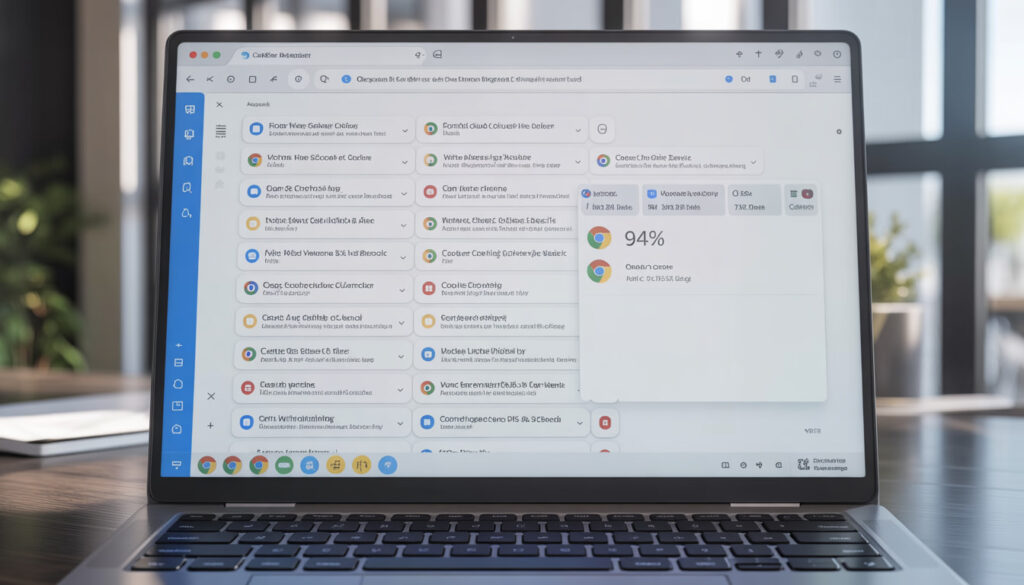
Chrome Is a RAM Monster
Here’s what we typically see:
| Chrome Usage | RAM Needed |
| 5 tabs (simple sites) | 500MB – 1GB |
| 10 tabs (mixed sites) | 1.5GB – 2.5GB |
| 15 tabs + YouTube | 3GB – 4GB |
| 20+ tabs + extensions | 4GB – 6GB |
RAM Recommendations
- 4GB: Barely enough for Windows 11 + light browsing. Not recommended in 2024.
- 8GB: Sweet spot for most users. Handles 10-15 Chrome tabs comfortably.
- 16GB: Ideal for professionals, multitaskers, and those who keep many programs open.
Quick check: Press Ctrl + Shift + Esc to open Task Manager. If you’re regularly at 85-100%
memory usage, a RAM upgrade will make a significant difference.
How We Upgrade Your Speed Without Losing Your Files
The biggest fear we hear: “Will I lose all my photos and files?”
Absolutely not when done correctly.
The Professional Upgrade Process
Step 1: Full System Backup
Before touching anything, we create a complete backup of your existing drive files, programs, settings, everything.
Step 2: Drive Cloning
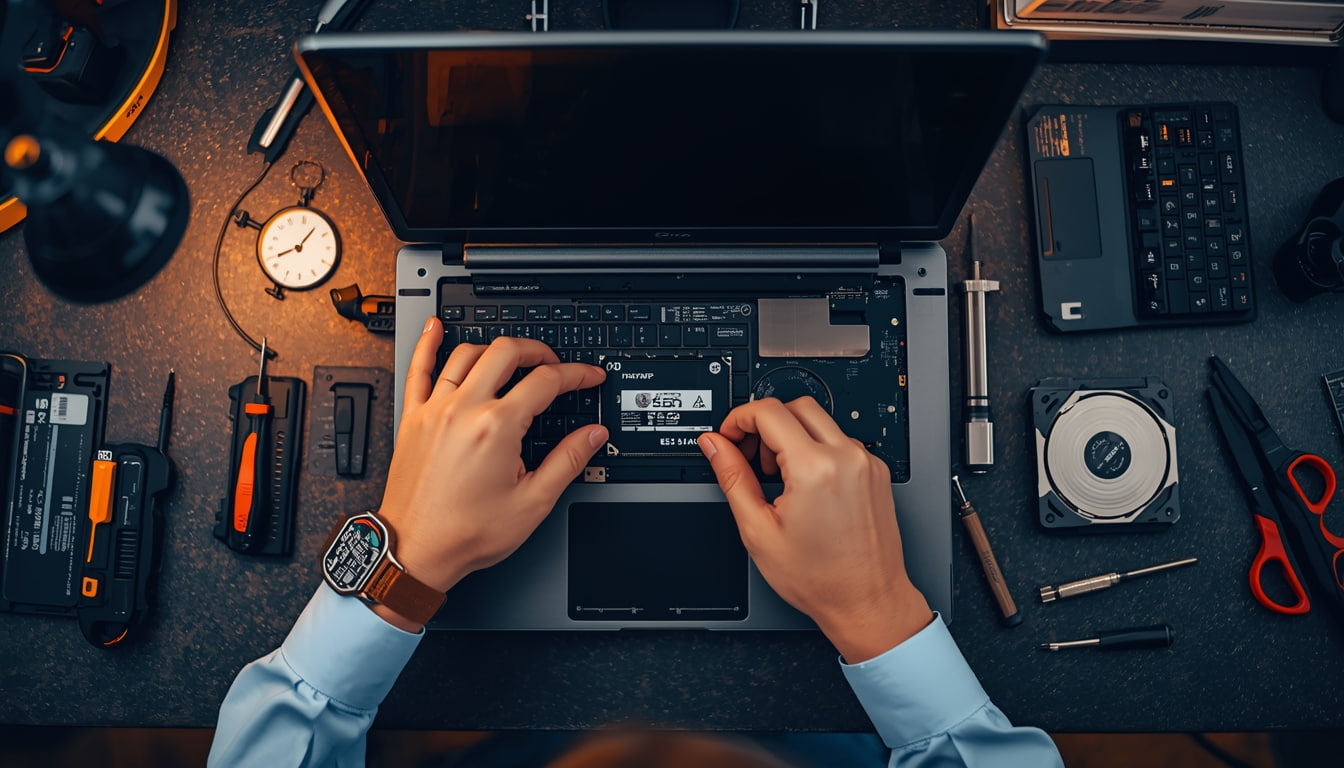
Using professional software, we create an exact sector-by-sector copy onto the new SSD. When you turn on your laptop after the upgrade, everything looks exactly the same same desktop, same files, same programs. Just incredibly faster.
Step 3: Installation & Optimization
The new SSD is installed, TRIM is enabled, and we verify all data transferred correctly.
Your old drive can be returned to you in an external enclosure for extra backup storage, or securely wiped and recycled.
Cooling Down an Overheating CPU to Regain Speed
Here’s a factor most “speed up your laptop” articles overlook: thermal throttling.
What Is Thermal Throttling?
Your CPU generates significant heat. To prevent damage, processors automatically slow down when temperatures exceed safe limits (90-100°C). This can reduce performance by 30-50% or more.
Why Laptops Overheat Over Time
Dust accumulation is the biggest culprit. Over 2-3 years, debris forms an insulating layer on your heatsink and clogs your fan. Other causes include dried-out thermal paste, blocked vents, and failing fans.
Signs of thermal throttling:
- Fan running constantly at maximum
- Hot keyboard and bottom
- Fast at first, then slows significantly under load
- Random shutdowns
The Fix
Professional thermal maintenance includes complete disassembly, compressed air cleaning, old thermal paste removal, fresh thermal paste application, and fan inspection. We regularly see laptops drop from 95°C to 65-75°C after proper maintenance, the difference between a throttled machine and one running at full capability.
$150 Upgrade vs. $800 New Laptop: The Smart Choice
Let’s do the math retailers hope you never calculate.
Typical Upgrade Costs
| Upgrade | Total Cost |
| 500GB SSD + Installation | $100-150 |
| RAM Upgrade (8GB → 16GB) | $60-100 |
| Thermal Cleaning | $40-80 |
| Complete Refresh | $150-250 |
Side-by-Side Comparison
| Factor | $150 Upgrade | $800 New Laptop |
| Boot time after | 15-30 seconds | 15-30 seconds |
| Your files/programs | All preserved | Require manual transfer |
| Learning curve | None | Hours of setup |
| Environmental impact | Minimal | Significant |
A 5-year-old laptop with an i5 or i7 processor is still plenty powerful for everyday tasks. The CPU handles email, browsing, and productivity just fine it’s the HDD and limited RAM holding it back.
When to Upgrade vs. Replace
Upgrade if: Your laptop is 3-6 years old with working screen/keyboard, has an i3/i5/i7 processor, and has upgradeable components.
Replace if: Your laptop is 7+ years old, has a low-power Celeron processor, has multiple broken components, or has soldered (non-upgradeable) storage and RAM.
Take Action Today
A slow laptop doesn’t mean you need a new laptop. In most cases, the culprit is an outdated hard drive, insufficient RAM, or thermal issues causing CPU throttling.
For $150-250 a fraction of a new computer’s cost you can transform your sluggish machine into a responsive tool that serves you for years to come.
Before resigning yourself to laptop shopping, get a professional assessment. Your wallet and the environment will thank you.
Leave a Comment
Your email address will not be published. Required fields are marked *