Is Your PS5 Loud? The “Jet Engine” Sound & How to Fix It

That unmistakable roar from your PS5 isn’t just annoying it’s your console crying for help. Thousands of PS5 owners report their consoles sounding like jet engines, often drowning out game audio entirely.

This noise signals potential thermal damage if ignored. Let’s explore what causes it and how to fix it properly.

The “Jet Engine” Warning: Identifying the Sound of a Struggling Cooling Fan

A healthy PS5 operates at 20-35 decibels barely audible. The jet engine sound hits 50-70 decibels, comparable to a vacuum cleaner.

What different patterns mean:

  • Gradual escalation (quiet to loud over 20 minutes): Dust accumulation
  • Immediate loud operation: Severe dust buildup or dried thermal paste
  • Intermittent screaming: Coil whine combined with thermal throttling
  • Grinding or rattling: Mechanical failure requiring immediate attention

Your PS5’s fan speed responds directly to internal temperatures. When the APU exceeds 85°C, the fan maxes out to prevent damage that’s your jet engine sound.

When problems typically start:

  • Clean environments: 12-18 months
  • Pet owners: 8-12 months
  • Smokers: 4-8 months

The Lethal Combination Clogging Your Heatsink Right Now

It’s not just dust inside your PS5 it’s a toxic mixture creating an insulating blanket over your cooling system.

The deadly recipe:

  • Household dust (40%): Skin cells, fabric fibers, soil particles
  • Pet dander and hair (25% in pet homes): Embeds deep in heatsink fins
  • Smoke/vapor residue: Creates sticky tar that binds everything together
  • Humidity: Transforms loose dust into cement-like blockages

The damage progression:

Blockage LevelTemperature IncreaseResult
20%+5-10°CMinor noise increase
40%+15-20°CNoticeable jet engine
60%+25-30°CConstant loud operation
80%++35°CThermal throttling/shutdown

Warning about dust covers: Aftermarket dust covers often restrict airflow, trap heat, and accelerate problems rather than preventing them.

PS5 loud fan noise

Understanding the PS5’s Unique Cooling System (And Why You Shouldn’t Open It Yourself)

Sony engineered the PS5 with revolutionary cooling technology that’s both impressive and dangerous to tamper with.

Key components:

  • Dual-sided vapor chamber: Spreads heat across a massive surface area using evaporating water
  • 120mm dual-intake fan: 23 blades with variable speed control
  • Liquid metal thermal interface: 2-4x better conductivity than paste, but extremely dangerous if disturbed

Why DIY disassembly is risky:

  1. Liquid metal contamination: Spills cause immediate short circuits. 15% of DIY repair attempts result in liquid metal damage costing $350-450 to fix.
  2. Warranty voidance: Opening beyond user-accessible panels (faceplates/expansion bay) voids your warranty entirely.
  3. Static discharge: One static shock can destroy chips, with damage sometimes appearing weeks later.
  4. Reassembly errors: Over-tightened screws crack motherboards; improper cable seating causes boot failures.

What you CAN safely do:

  • Remove faceplates and vacuum dust ports
  • Clean exterior surfaces
  • Ensure proper ventilation spacing
  • Access expansion bay for SSD installation

The HDMI Port Weakness: Why Wiggling Your Cable Causes Permanent Damage

The PS5’s HDMI 2.1 port is surface-mounted with only solder pads for support no reinforcement bracket.

How normal use causes damage:

  • Heavy/stiff cables exert constant leverage
  • Moving the console for cleaning
  • Cable swapping between devices
  • The deadly “wiggle test” when connections seem unstable

Each wiggle breaks microscopic amounts of solder. Damage accumulates invisibly until total failure.

The thermal connection: Marginal HDMI damage forces harder video processing, generating more heat and louder fans. Users then chase thermal solutions for what’s actually a connector problem.

Prevention strategies:

  • Use thin, flexible HDMI 2.1 cables
  • Create slack loops to reduce port stress
  • Never wiggle cables to “fix” connections
  • Treat insertions as permanent installations

Repair costs: HDMI port replacement runs $100-150 professionally. Prevention costs under $30 in quality cables.

DIY Canned Air vs. Professional Deep Clean: Why Blowing Air In Can Make It Worse

Canned air seems like the obvious solution. For your PS5, it’s potentially disastrous.

Why canned air fails:

  1. Redistribution, not removal: High-pressure air pushes dust deeper into heatsink fins rather than extracting it
  2. Moisture introduction: Tilted cans spray liquid propellant causing condensation and corrosion
  3. Fan spin damage: Forced spinning exceeds design limits, stressing bearings and potentially generating damaging electrical feedback
  4. Static generation: Rapidly flowing air creates electrostatic discharge risk

What professional cleaning includes:

  • Complete disassembly (fan, heatsink, power supply)
  • Component-specific cleaning with proper tools
  • Thermal interface replacement
  • Reassembly with proper torque and testing
  • Temperature verification under load

Cost comparison:

ApproachCostEffectivenessLong-term
DIY canned air$1010-20%Returns in weeks
Professional clean$100-15095%+Lasts 12-18 months

Finding reputable service: Look for specific PS5 experience, micro-soldering capability, work warranties, and before/after documentation. Avoid shops with no reviews or suspiciously low prices.

How Heat Kills Your Frame Rates (FPS) in Competitive Gaming

That loud fan isn’t just annoying, it’s warning you about performance loss happening right now.

Thermal throttling explained:

When your APU approaches dangerous temperatures, the system automatically:

  • Reduces clock speeds
  • Limits power draw
  • Scales down resolution/effects
  • Caps frame rates

This happens invisibly no warning, just degraded performance.

Real performance impact:

GameClean ConsoleDusty Console
Fortnite (120Hz mode)Stable 120 FPS90-110 FPS with dips
Warzone 2.0100-120 FPS70-95 FPS with stuttering
Demanding AAA titlesStable 60 FPS45-55 FPS with drops

For competitive gamers, this means:

  • Delayed input response
  • Inconsistent frame pacing
  • Visual stuttering during crucial moments

Environmental optimization:

  • Maintain room temperature at 68-72°F
  • Ensure 4″+ clearance on all ventilated sides
  • Never place on carpet or soft surfaces
  • Consider vertical positioning (often runs cooler)

Conclusion: Your Action Plan

Today:

  • Rate your fan noise severity
  • Check console placement and clearances
  • Clean exterior and vacuum dust ports

This month:

Ongoing maintenance:

  • Monthly exterior cleaning
  • Annual professional deep cleaning
  • Regular environment assessment

Your PS5 was designed to be whisper-quiet. That jet engine sound demands attention address it now to protect your investment and gaming performance.

PS5 loud fan noise fix

The “Spicy Pillow”: Dangers of Swollen Batteries in the Summer Heat

Every summer, repair technicians across the United States witness a surge in one particular issue: iPhone swollen batteries. Affectionately nicknamed “spicy pillows” in tech communities, these bloated power cells represent more than an inconvenience; they constitute a genuine fire and explosion hazard.

If you’ve noticed your iPhone screen lifting, the device feeling thicker, or your phone rocking on flat surfaces, you may be dealing with a swollen battery. This comprehensive guide explains why summer heat accelerates battery degradation, how to identify warning signs, and what steps to take when your iPhone battery begins to fail.

Iphone Swollen Batteries

How 95°F+ Weather Degrades Lithium-Ion Capacity

Lithium-ion batteries operate through chemical reactions that are highly temperature-sensitive. Apple designs iPhones to function optimally between 32°F and 95°F (0°C to 35°C). When ambient temperatures exceed this threshold, the battery’s internal chemistry becomes unstable.

At temperatures above 95°F, several destructive processes occur simultaneously:

Accelerated Electrolyte Decomposition: The liquid electrolyte that enables ion movement between the anode and cathode begins breaking down faster. This decomposition produces gases that accumulate inside the sealed battery pouch.

SEI Layer Degradation: The Solid Electrolyte Interphase, a protective film on the battery’s anode, deteriorates in heat. Each degradation cycle consumes lithium ions permanently, reducing overall capacity.

Thermal Runaway Risk: In extreme cases, sustained heat exposure can trigger thermal runaway, where the battery generates more heat than it can dissipate, potentially resulting in fire or explosion.

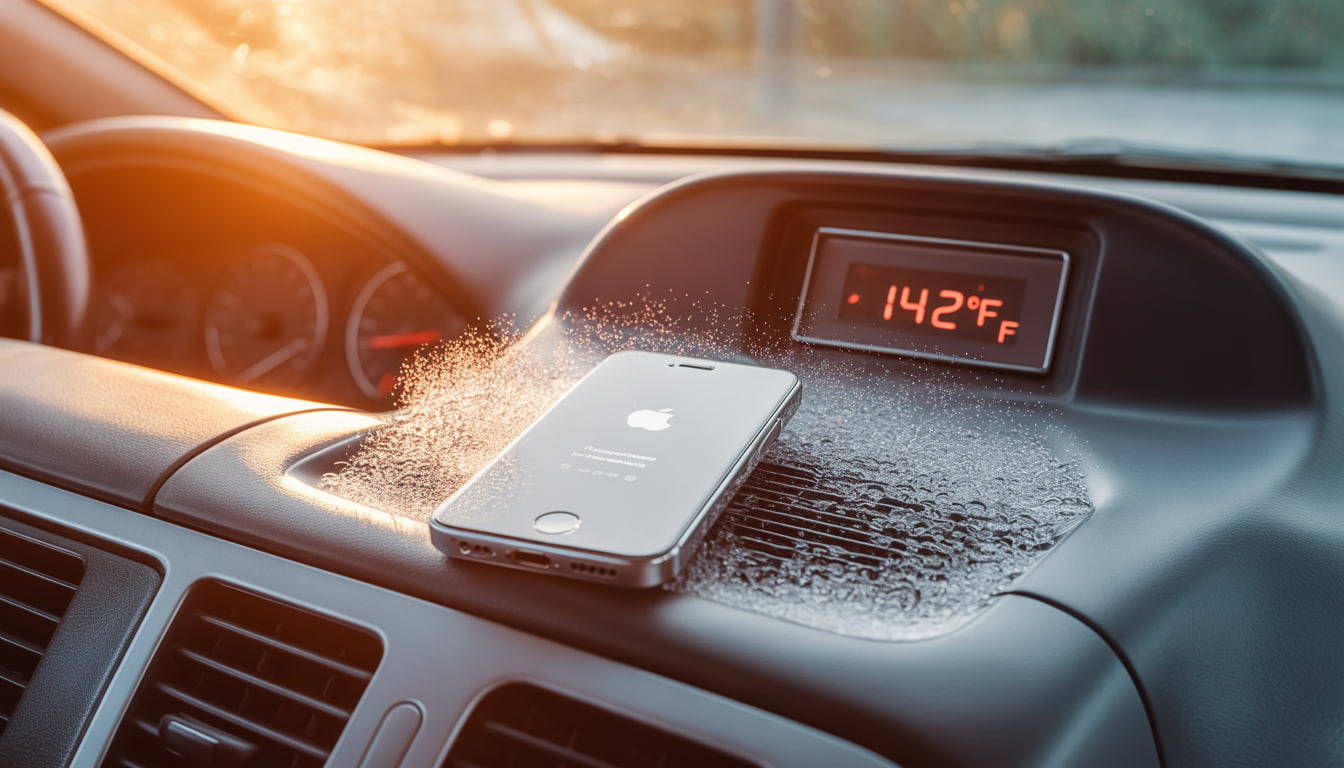
Research indicates that storing lithium-ion batteries at 104°F (40°C) for extended periods can reduce capacity by 15-35% within a single year. For iPhone users in states like Arizona, Texas, Florida, and Nevada, leaving devices in parked cars during summer months where interior temperatures can exceed 140°F dramatically shortens battery lifespan.

The formation of internal gases is what transforms a flat battery cell into the characteristic pillow shape. This swelling places pressure on internal iPhone components, eventually pushing the display away from the frame.

How to Read Your iPhone Battery Settings Like a Pro

Apple provides diagnostic tools that help users monitor battery health before problems become visible. Navigate to Settings > Battery > Battery Health & Charging to access critical information.

Maximum Capacity: This percentage indicates your battery’s current capacity relative to when it was new. A reading of 85% means your battery holds 85% of its original charge. Apple considers batteries with 80% or higher capacity to be operating normally.

Peak Performance Capability: This section reveals whether iOS has implemented performance throttling. Messages indicating “normal” peak performance mean no throttling is active. Any variation from this message warrants attention.

Cycle Count (accessible via Settings > General > About on iOS 17.4+): Each full discharge and recharge constitutes one cycle. Apple rates iPhone batteries for approximately 500 complete cycles before reaching 80% capacity, though newer models with improved chemistry may exceed this.

Charging Optimization Status: Verify that “Optimized Battery Charging” is enabled. This feature learns your charging habits and delays charging past 80% until you need your phone, reducing stress on the battery.

Monitor these metrics monthly during summer months. Rapid capacity drops particularly losses exceeding 5% within a single month may indicate heat damage or imminent swelling.

Why Apple Intentionally Slows Down Phones with Old Batteries

In 2017, Apple confirmed what many users suspected: iOS throttles processor speeds on iPhones with degraded batteries. This practice, initially implemented without user notification, sparked significant controversy and resulted in a $113 million settlement across multiple states.

The technical justification is legitimate. As batteries age, their internal resistance increases. 

When high-performance tasks demand significant current draw, degraded batteries may struggle to maintain adequate voltage. This voltage sag can cause unexpected shutdowns a problem that affected many iPhone 6 and 6s users.

Apple’s solution was to dynamically limit peak CPU and GPU performance when the battery cannot reliably supply demanded power. While this prevents shutdowns, it manifests as:

  • Slower application launch times
  • Reduced frame rates during graphics-intensive tasks
  • Longer processing times for photos and videos
  • Dimmed display brightness in some scenarios

Following user backlash, Apple now provides transparency through the Battery Health menu. If you see the message “Performance management has been applied,” your device is being throttled due to battery degradation. iOS allows users to disable this feature, though doing so risks unexpected shutdowns.

For iPhones with swollen batteries, throttling often precedes visible swelling. If performance degradation coincides with summer months and your phone is two or more years old, battery inspection is advisable.

iPhone Swollen Batteries: Recognizing Screen Lifting as a Fire Hazard

The most visible indicator of iPhone swollen batteries is display separation. As gases accumulate within the battery pouch, internal pressure increases until the weakest structural point yields typically the adhesive bonding the screen to the frame.

Perform these physical inspections regularly:

The Flat Surface Test: Place your iPhone on a hard, flat surface. Press each corner gently. If the phone rocks or feels unstable, the frame may be warping due to battery expansion.

Visual Inspection: Examine the seam between the display and aluminum frame from multiple angles under good lighting. Any visible gap, particularly near the bottom of the device (where iPhone batteries are located), indicates potential swelling.

Tactile Check: Run your fingernail along the display edge. Separation should be imperceptible on a healthy device.

Caution: If you confirm swelling, do not attempt to puncture, compress, or heat the device. Punctured lithium-ion batteries can release toxic fumes and ignite. Place the device in a fireproof container or on a non-flammable surface away from combustibles and contact a qualified repair technician immediately.

The Consumer Product Safety Commission recommends treating swollen batteries as hazardous materials. Do not place swollen devices in regular trash. Most Apple Stores and authorized service providers accept damaged batteries for proper recycling.

Aftermarket vs. OEM Quality: Understanding the Difference in Replacement Parts

When replacing iPhone swollen batteries, consumers face a choice between Apple’s official service and third-party repair providers using aftermarket components. Understanding the differences helps inform this decision.

OEM (Original Equipment Manufacturer) Batteries:

  • Manufactured to Apple’s specifications
  • Include proper battery management system integration
  • Maintain accurate Battery Health readings in iOS
  • Carry Apple’s warranty coverage
  • Cost more ($89-$119 through Apple for most models)

Aftermarket Batteries:

  • Quality varies dramatically by supplier
  • May use recycled or inferior cells
  • Often trigger “Unable to verify” warnings in iOS
  • May not communicate accurately with iOS battery management
  • Typically cost $30-$60 through independent repair shops

Apple implemented software-based authentication starting with the iPhone XS and XR. 

Non-authenticated batteries display a “Service” message in Battery Health regardless of actual condition, and accurate capacity reporting is disabled.

However, this doesn’t mean all aftermarket options are inferior. High-quality third-party batteries using genuine cells can perform comparably to OEM components. The challenge lies in identifying reputable suppliers. Request information about cell origin and capacity ratings before authorizing replacement.

For devices still under AppleCare+ coverage, Apple replacement represents the logical choice. For older devices outside warranty, aftermarket batteries from established repair shops with strong reviews offer reasonable value.

Calibration Tips: How to Treat Your New Battery for Maximum Lifespan

After battery replacement, proper calibration and usage habits significantly impact longevity. 

Follow these evidence-based practices:

Initial Calibration Cycle: Allow the new battery to discharge to approximately 5-10%, then charge uninterrupted to 100%. Leave connected for an additional hour after reaching full charge. This process helps iOS accurately gauge the battery’s true capacity.

Ongoing Maintenance:

  • Maintain charge levels between 20-80% during daily use when possible
  • Avoid overnight charging on surfaces that trap heat (beds, couches)
  • Remove cases during extended charging sessions to improve heat dissipation
  • Enable “Optimized Battery Charging” to reduce time spent at 100%
  • Avoid using the device while charging, particularly during resource-intensive tasks

Environmental Precautions:

  • Never leave your iPhone in vehicles during summer months
  • Avoid direct sunlight exposure during outdoor use
  • If the device displays a temperature warning, power it off and allow cooling before resuming use
  • Store devices in climate-controlled environments during extreme weather

Charging Equipment: Use Apple-certified cables and adapters. Non-certified chargers may deliver inconsistent voltage that stresses battery chemistry. MFi certification indicates compliance with Apple’s standards.

Following these practices can extend battery service life by 12-24 months compared to careless usage patterns.

Conclusion

iPhone swollen batteries represent a predictable failure mode that summer heat accelerates substantially. By monitoring battery health metrics, recognizing physical warning signs, and responding appropriately when swelling occurs, you can protect both your device and your safety.

If you discover a swollen battery in your iPhone, avoid delays. The same chemical instability causing the swelling creates fire risk that increases over time. Seek professional replacement promptly and follow calibration best practices to maximize the lifespan of your new battery.

Why Is Your Laptop So Slow? 3 Fixes Before You Buy a New One

Houston computer repair experts reveal why your “dying” laptop might just need a $150 upgrade to feel brand new again.

Every week, frustrated Houston residents walk into computer repair shops ready to spend $800+ on a new laptop. Here’s what most discover: 80% of “slow” laptops aren’t broken at all. They’re just being held back by outdated components that cost a fraction of a new computer to fix.

Before you go laptop shopping, let’s break down exactly why your computer has slowed to a crawl and the three fixes that can restore lightning-fast performance.

Why Old Hard Drives (HDD) Are the Bottleneck

If your laptop is more than 3-4 years old and you’ve never upgraded the storage, there’s a 90% chance it’s running on a traditional Hard Disk Drive (HDD). That spinning disk is almost certainly why you’re waiting 3-5 minutes for your laptop to boot up every morning.

How HDDs Work (And Why They’re So Slow)

Picture an old record player. Inside your hard drive, there’s an actual metal disk spinning at 5,400-7,200 rotations per minute. A tiny mechanical arm moves back and forth, reading data as it goes.

Now imagine asking that record player to simultaneously load Windows, open Chrome with 15 tabs, run antivirus software, sync Dropbox, and update applications. That mechanical arm is physically moving thousands of times per second, trying to find scattered data. It’s like a librarian running through a massive library, pulling one book at a time, while everyone shouts requests simultaneously.

HDDs Get Slower Over Time

Here’s what most people don’t realize: HDDs don’t just stay slow they get worse.

As you use your computer:

  • File fragmentation increases — Data scatters across the disk like puzzle pieces
  • The disk fills up — Below 15% free space, performance drops exponentially
  • Mechanical wear occurs — Moving parts degrade after 20,000+ hours of operation
  • Bad sectors develop — Corrupted areas force the system to work around them

Warning signs your HDD is dying:

  • Clicking or grinding noises
  • Files that won’t open or take forever to load
  • Frequent freezing when accessing files
  • Windows taking 5+ minutes to boot
  • Blue Screen of Death errors

SSD vs. HDD: The 10x Speed Difference Explained Simply

The solution that transforms sluggish laptops into speed demons? A Solid State Drive (SSD).

What Makes SSDs So Much Faster?

An SSD has no moving parts whatsoever. Instead of spinning disks, it uses flash memory chips the same technology in your smartphone, just faster and more sophisticated.

Think of it like this:

  • HDD: A librarian running through a physical library, grabbing books one at a time
  • SSD: Instant digital access to any book with a simple search

There’s no waiting for anything to physically move. When your computer requests data, the SSD delivers it in nanoseconds rather than milliseconds.

Real-World Speed Comparison

TaskHDD TimeSSD Time
Windows Boot2-5 minutes15-30 seconds
Opening Word30+ seconds2-3 seconds
Opening Photoshop1-2 minutes10-15 seconds
Browser Launch15-30 seconds2-5 seconds
Sleep to Wake30+ seconds2-3 seconds

For most Houston laptop users, a standard SATA SSD ($40-80 for 500GB) delivers all the speed improvement you’ll notice for everyday tasks. You’d only need faster NVMe drives for professional video editing or massive file transfers.

The Multitasking Muscle: How Much Memory Do You Actually Need?

RAM (Random Access Memory) is your laptop’s “working memory” where active programs live for quick access. If your SSD is the filing cabinet, RAM is your desk where you spread out files you’re actively using.

Why RAM Matters (Especially for Chrome Users)

When you run out of RAM, your computer borrows storage space as “virtual memory.” The problem? Even a fast SSD is 100,000x slower than RAM.

When your system starts swapping data between RAM and storage, you’ll notice:

  • Lag when switching between programs
  • Stuttering when scrolling
  • Programs freezing for seconds at a time
  • That spinning wheel of doom

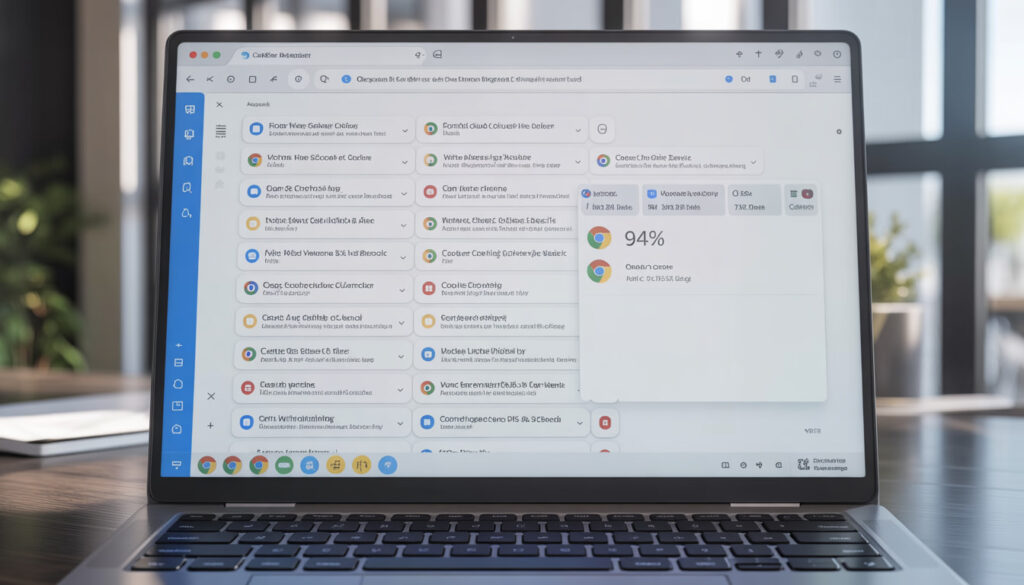
Chrome Is a RAM Monster

Here’s what we typically see:

Chrome UsageRAM Needed
5 tabs (simple sites)500MB – 1GB
10 tabs (mixed sites)1.5GB – 2.5GB
15 tabs + YouTube3GB – 4GB
20+ tabs + extensions4GB – 6GB

RAM Recommendations

  • 4GB: Barely enough for Windows 11 + light browsing. Not recommended in 2024.
  • 8GB: Sweet spot for most users. Handles 10-15 Chrome tabs comfortably.
  • 16GB: Ideal for professionals, multitaskers, and those who keep many programs open.

Quick check: Press Ctrl + Shift + Esc to open Task Manager. If you’re regularly at 85-100%

memory usage, a RAM upgrade will make a significant difference.

How We Upgrade Your Speed Without Losing Your Files

The biggest fear we hear: “Will I lose all my photos and files?”

Absolutely not when done correctly.

The Professional Upgrade Process

Step 1: Full System Backup
Before touching anything, we create a complete backup of your existing drive files, programs, settings, everything.

Step 2: Drive Cloning
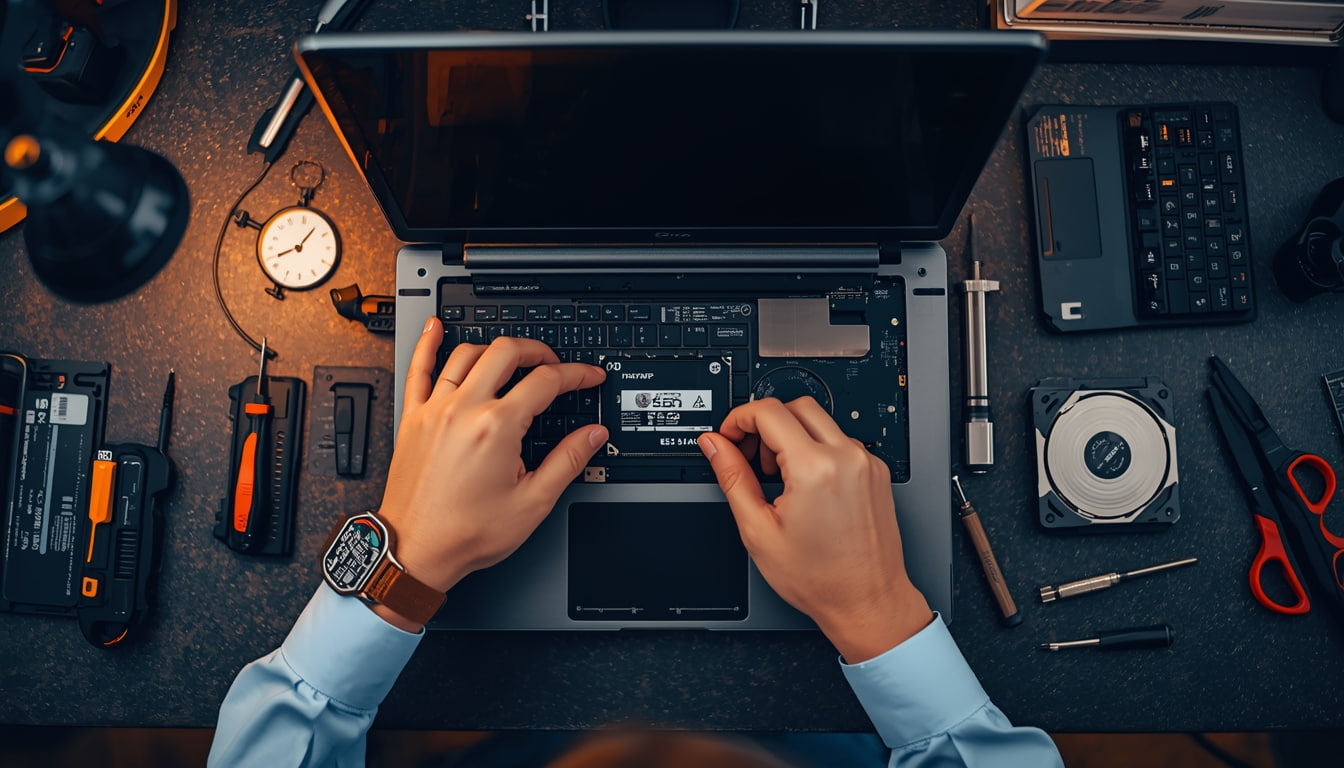
Using professional software, we create an exact sector-by-sector copy onto the new SSD. When you turn on your laptop after the upgrade, everything looks exactly the same same desktop, same files, same programs. Just incredibly faster.

Step 3: Installation & Optimization
The new SSD is installed, TRIM is enabled, and we verify all data transferred correctly.

Your old drive can be returned to you in an external enclosure for extra backup storage, or securely wiped and recycled.

Cooling Down an Overheating CPU to Regain Speed

Here’s a factor most “speed up your laptop” articles overlook: thermal throttling.

What Is Thermal Throttling?

Your CPU generates significant heat. To prevent damage, processors automatically slow down when temperatures exceed safe limits (90-100°C). This can reduce performance by 30-50% or more.

Why Laptops Overheat Over Time

Dust accumulation is the biggest culprit. Over 2-3 years, debris forms an insulating layer on your heatsink and clogs your fan. Other causes include dried-out thermal paste, blocked vents, and failing fans.

Signs of thermal throttling:

  • Fan running constantly at maximum
  • Hot keyboard and bottom
  • Fast at first, then slows significantly under load
  • Random shutdowns

The Fix

Professional thermal maintenance includes complete disassembly, compressed air cleaning, old thermal paste removal, fresh thermal paste application, and fan inspection. We regularly see laptops drop from 95°C to 65-75°C after proper maintenance, the difference between a throttled machine and one running at full capability.

$150 Upgrade vs. $800 New Laptop: The Smart Choice

Let’s do the math retailers hope you never calculate.

Typical Upgrade Costs

UpgradeTotal Cost
500GB SSD + Installation$100-150
RAM Upgrade (8GB → 16GB)$60-100
Thermal Cleaning$40-80
Complete Refresh$150-250

Side-by-Side Comparison

Factor$150 Upgrade$800 New Laptop
Boot time after15-30 seconds15-30 seconds
Your files/programsAll preservedRequire manual transfer
Learning curveNoneHours of setup
Environmental impactMinimalSignificant

A 5-year-old laptop with an i5 or i7 processor is still plenty powerful for everyday tasks. The CPU handles email, browsing, and productivity just fine it’s the HDD and limited RAM holding it back.

When to Upgrade vs. Replace

Upgrade if: Your laptop is 3-6 years old with working screen/keyboard, has an i3/i5/i7 processor, and has upgradeable components.

Replace if: Your laptop is 7+ years old, has a low-power Celeron processor, has multiple broken components, or has soldered (non-upgradeable) storage and RAM.

Take Action Today

A slow laptop doesn’t mean you need a new laptop. In most cases, the culprit is an outdated hard drive, insufficient RAM, or thermal issues causing CPU throttling.

For $150-250 a fraction of a new computer’s cost you can transform your sluggish machine into a responsive tool that serves you for years to come.

Before resigning yourself to laptop shopping, get a professional assessment. Your wallet and the environment will thank you.

Recent post

Iphone Swollen Batteries Houston

The “Spicy Pillow”: Dangers of Swollen Batteries in the Summer Heat

My Laptop is Slow

Why Is Your Laptop So Slow? 3 Fixes Before You Buy a New One

Wireless Charging Not Working

Wireless Charging Not Working? The Hidden Cost of Broken Back Glass

Scroll to Top